How to organise apps on Android
Six ways to tidy a phone full of apps, from Android’s own folders to launchers built around categories, and when each one makes sense.
Updated 9 November 2026
A phone collects apps quickly: banking, transport, messaging, work tools, the app a restaurant made you install once. After a while the home screen is pages of icons and the app drawer is a long wall to scroll. Here are six ways to bring order to it, from the ones built into Android to dedicated launchers, with what each is good and bad at.
1. Clean up first
Every other method works better with fewer apps. Open Android’s Settings, go to Apps and sort by last used or by size where your phone offers it. Uninstall what you haven’t opened in months. Apps that came with the phone and can’t be removed can often be disabled instead.
A good rule: if you can’t remember what an app does, you won’t miss it.
2. Group apps into folders
On almost every Android home screen, you can drag one app onto another to make a folder, then rename it. It costs nothing and needs no new app.
- Good for: a few groups of rarely used apps, like Travel or Utilities.
- Less good: you can’t see what’s inside without opening the folder, folders still sit among pages of icons, and new apps land wherever there’s space.
3. Sort the app drawer
The app drawer, the screen with all your apps, is usually alphabetical. That’s predictable but doesn’t group anything. Samsung phones default to a custom order instead: to switch, open the Apps screen, tap the three dots, then Sort › Alphabetical order. Your launcher’s search is often the fastest way to open a known app: swipe up and start typing.
- Good for: finding an app whose name you know.
- Less good: no groups, and with 80+ apps the list gets long.
4. Hide apps you need but rarely open
Some launchers let you hide apps from the home screen and app drawer while keeping them installed: think of a parking app or your bank’s card reader. Samsung’s launcher has this in its home screen settings, and most third-party launchers do too. Pixel’s own launcher doesn’t; it relies on Private Space instead (next tip).
5. Use Private Space for sensitive apps
Android 15 added Private Space: a separate, locked area at the bottom of the app drawer for apps you’d rather keep away from people borrowing your phone. On a Pixel it’s under Settings › Security & privacy › Private space. Apps in it are fresh, separate copies, so it’s for privacy rather than tidiness.
6. Switch to a launcher built around categories
A launcher is the app that draws your home screen, and you can replace it with one from Google Play. Some are built to organise. You sort apps into categories once, and the home screen shows those groups instead of pages of icons.
Pageless works this way. You create categories such as Work, Social, Money or Travel, put them in your own order, and each app belongs to one. New apps wait in Uncategorised until you place them, so nothing moves around on its own. Your favourites stay at the top.
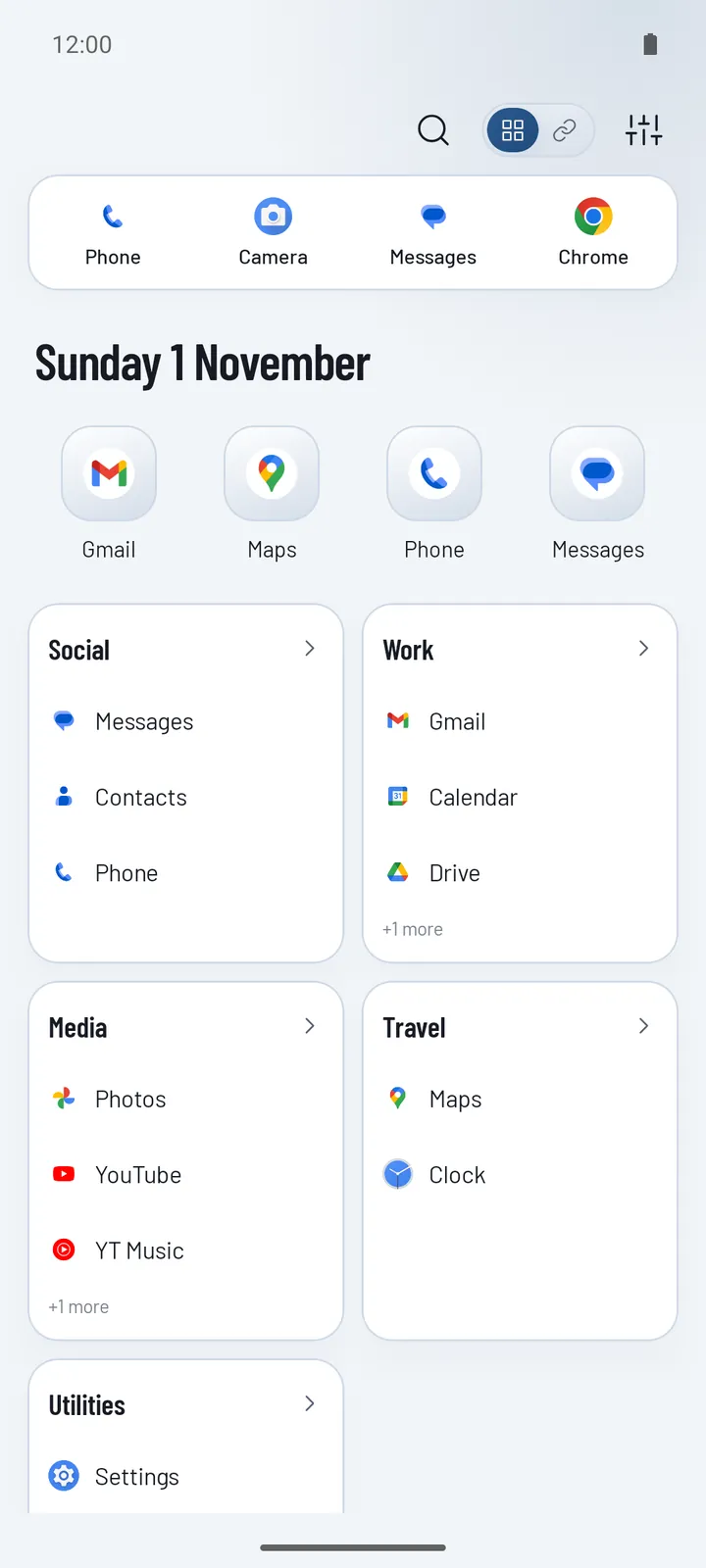
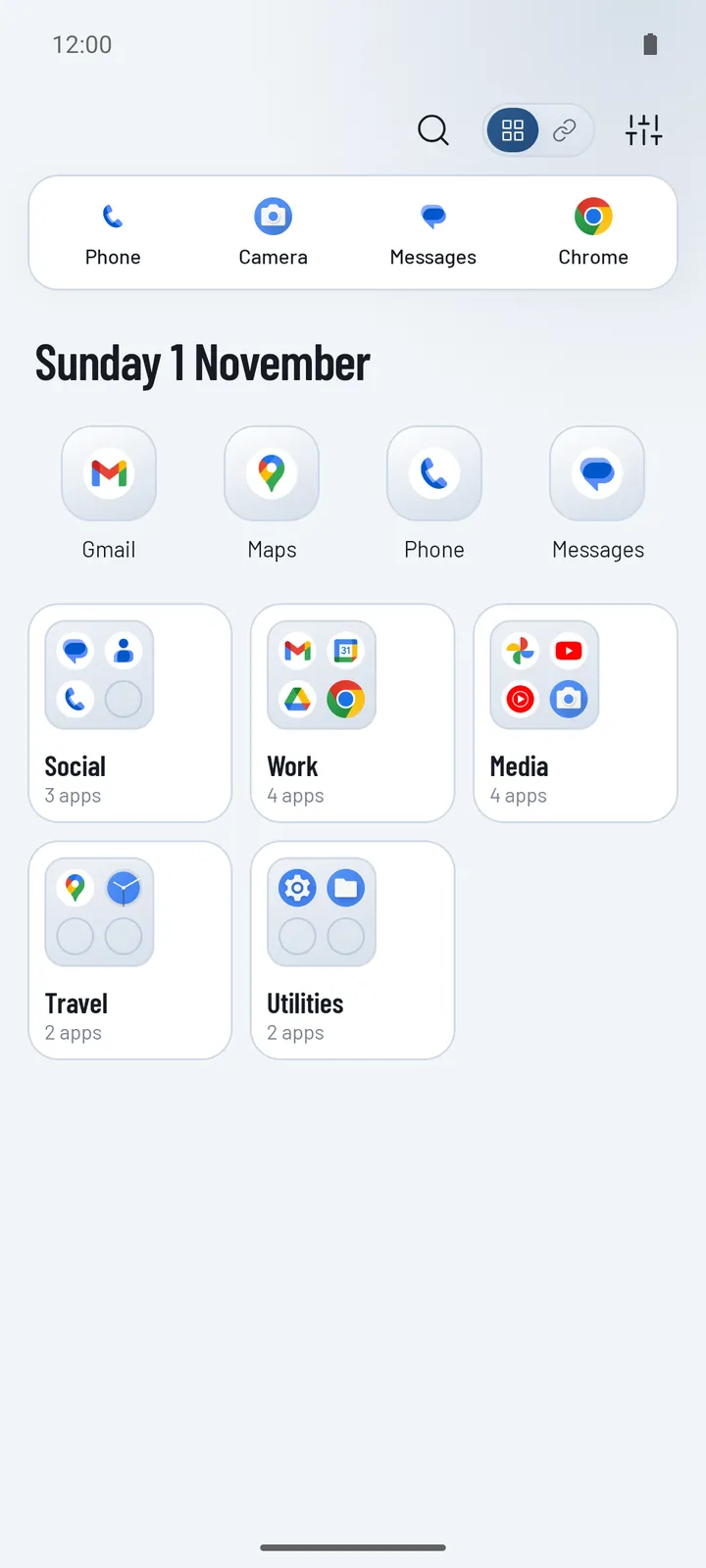
The categories are free in Pageless and show as tabs on the A–Z list. Pageless Pro adds four other ways to show them, such as a card per category or a folder per category. See all five layouts.
Other launchers organise differently. Smart Launcher sorts apps into categories automatically, and Niagara keeps one list with your favourites on top. Our launcher comparison covers them fairly.
Which method should you use?
| Method | Best for | Effort |
|---|---|---|
| Clean up | Everyone, first | 10 minutes |
| Folders | Under 40 apps, a few groups | Low |
| Sorted app drawer + search | People who open apps by name | None |
| Hidden apps | Apps you need rarely | Low |
| Private Space | Sensitive apps | Medium |
| Category launcher | 40+ apps, work and personal on one phone | One setup, about 10 minutes |
Questions
What is the best way to organise apps on Android?
Start by deleting apps you no longer use, then group the rest. Folders work for a handful of apps. If you have more than about 40, a launcher with categories keeps everything in view without pages of icons.
Can Android sort apps into categories automatically?
Most phone makers’ launchers don’t. Some third-party launchers, such as Smart Launcher, sort apps automatically. Others, like Pageless, let you build the categories yourself so nothing moves without you.
How do I sort apps alphabetically on a Samsung phone?
Open the Apps screen, tap the three dots (More options), tap Sort and choose Alphabetical order. Since One UI 7 the alphabetical list scrolls up and down.
Does organising apps with a launcher change or delete apps?
No. A launcher only changes how apps are shown. Uninstalling the launcher or switching back leaves every app as it was.