Home screen layouts
Pageless has five home screens to choose from. Swipe through them at the top of Settings, and the one you stop on is the one you get.
List is free. The others come with Pageless Pro, and all of them are unlocked for the first 7 days.
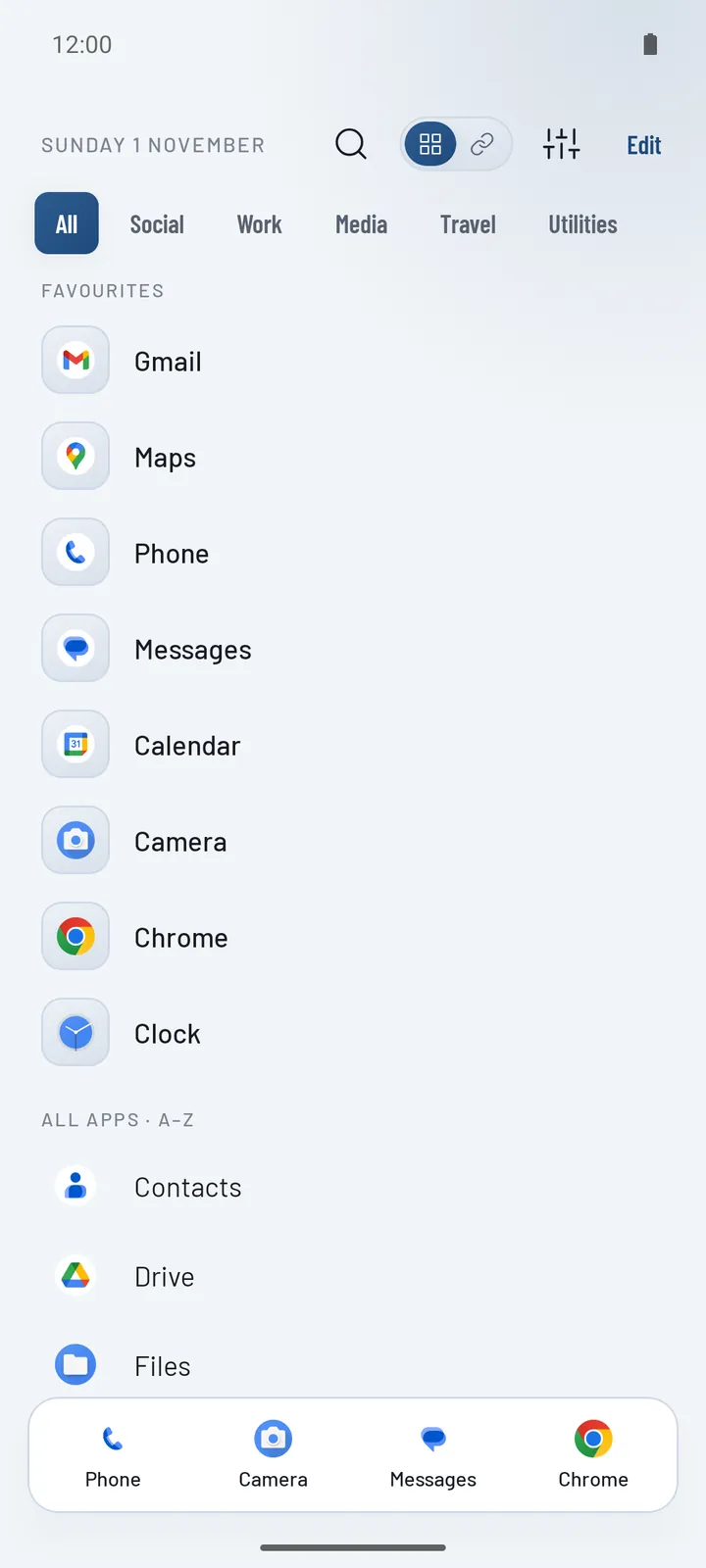
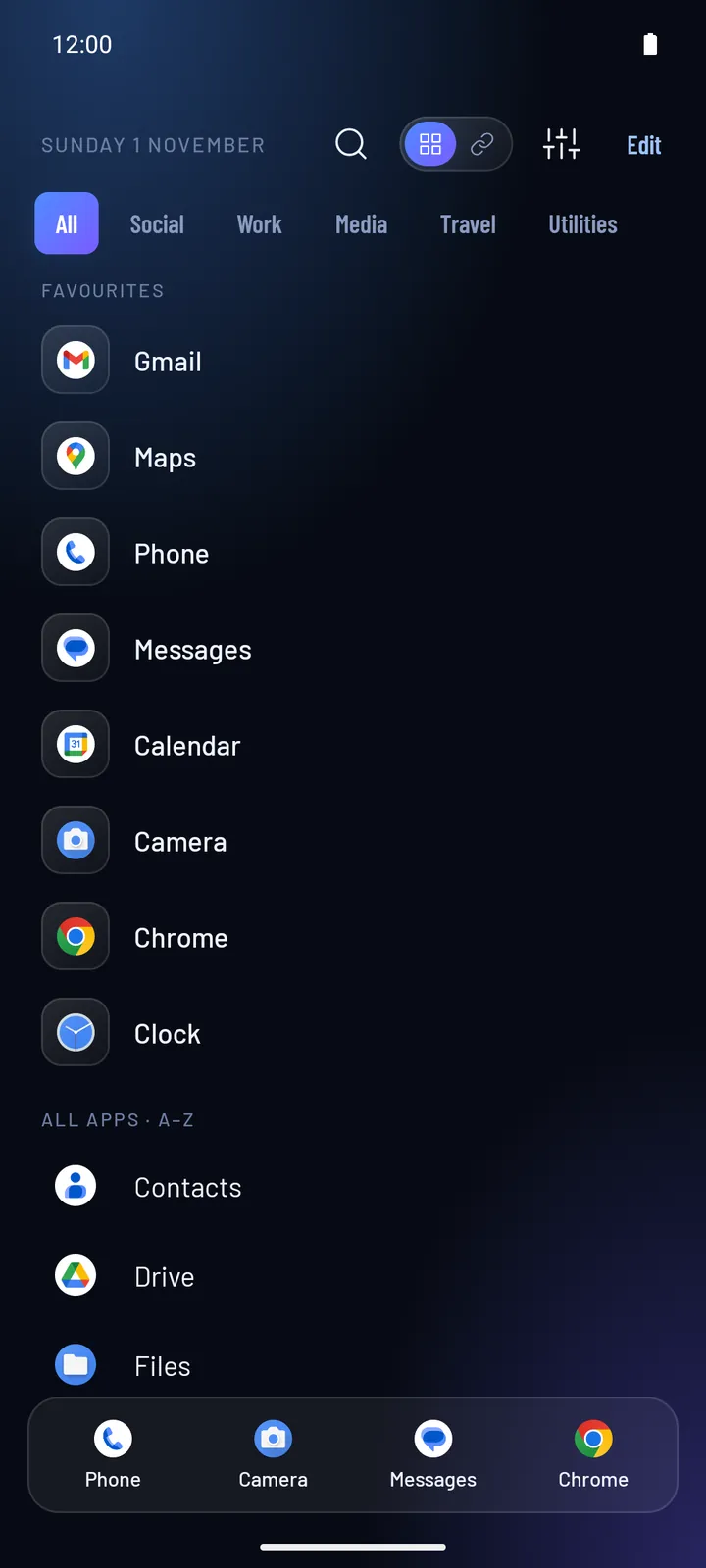
List
Every app in one list, with your favourites on top and everything else below them, from A to Z or in the App order you set.
Tabs across the top narrow the list to one category. Tap Edit, then an app, to change its category right there.
Good for: anyone who opens apps by name, and the most minimal look. It’s free.
Options
- Hide empty categories: leaves them out of the tabs
Categories Pro
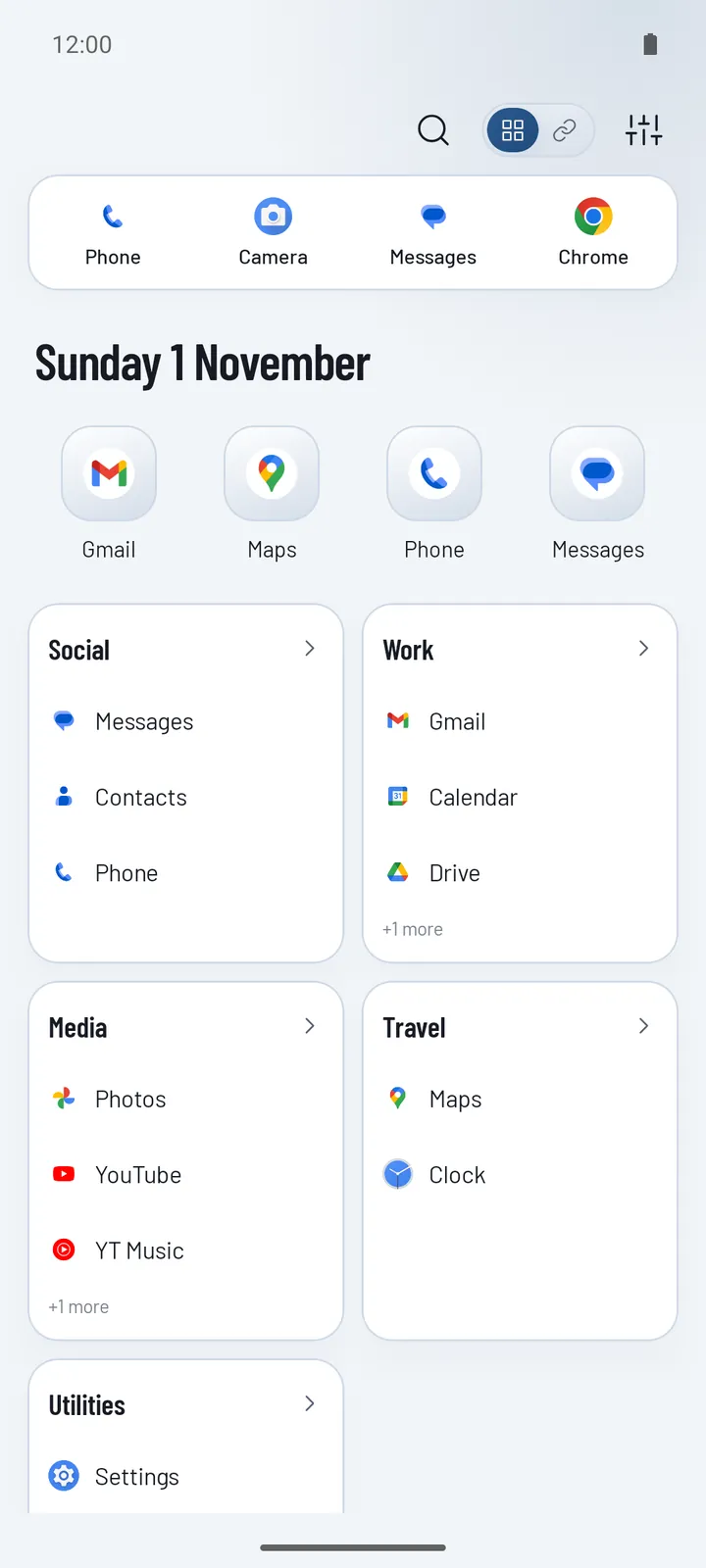
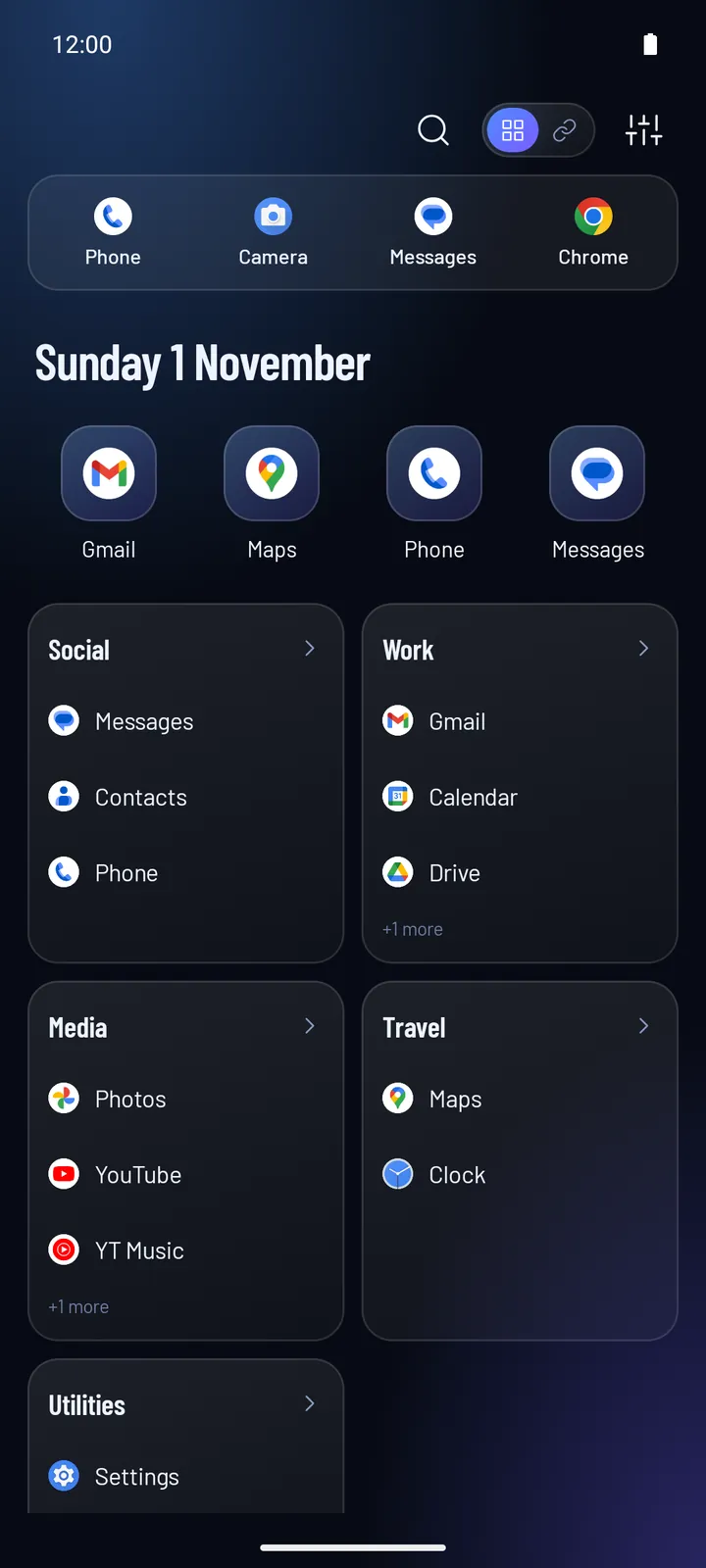
Your favourites, then a card for each category, two to a row. It’s a good fit if you think of your phone in groups.
Tap an app on a card to open it, or the arrow on the card to see the whole category.
Good for: people who think of their phone in groups, such as Work, Social and Money.
Options
- Card content: List or Icons
- Apps per category (List): 2 to 6, or All
- Rows per category (Icons): 1 to 4, or All, with three apps per row
- Card height: Same, or Fit to pack the cards by their own height
- Hide empty categories
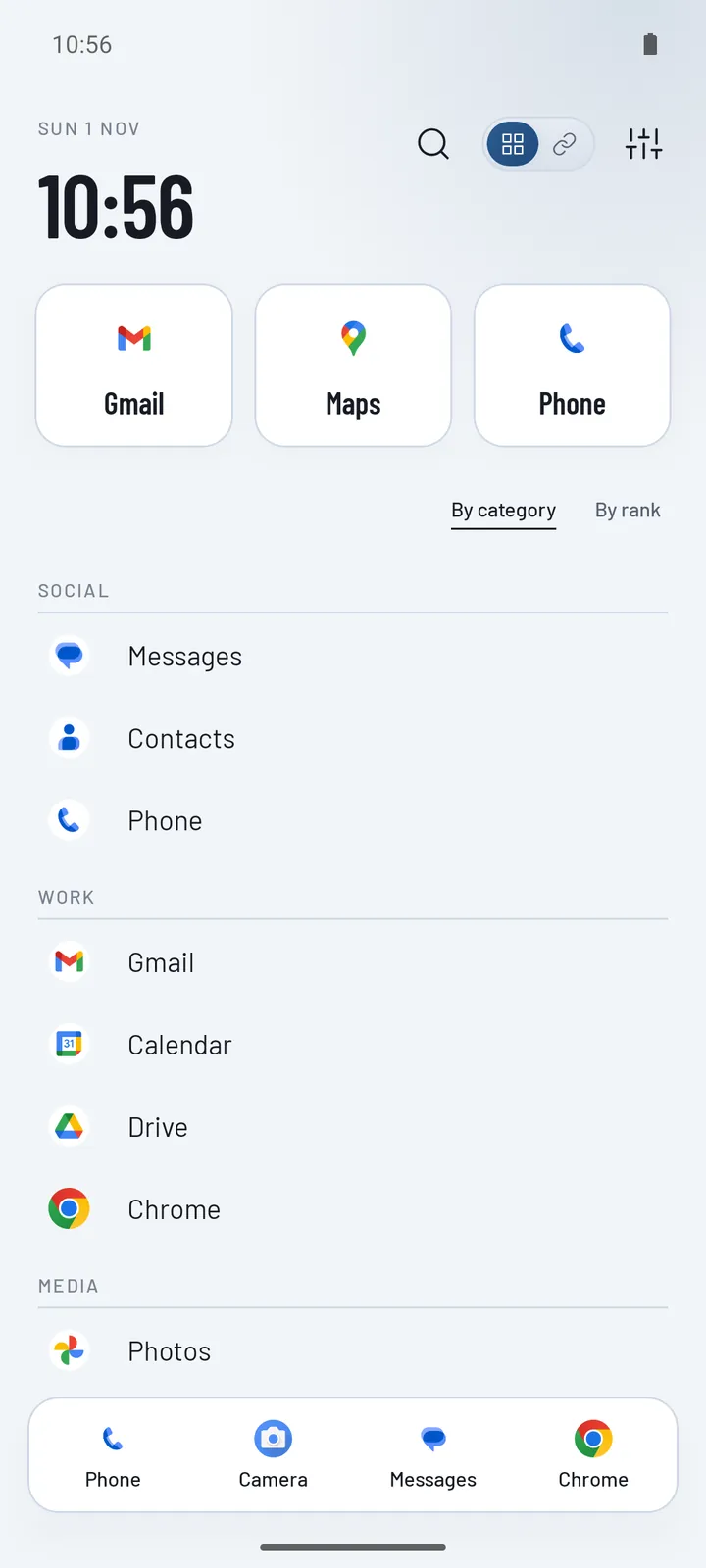
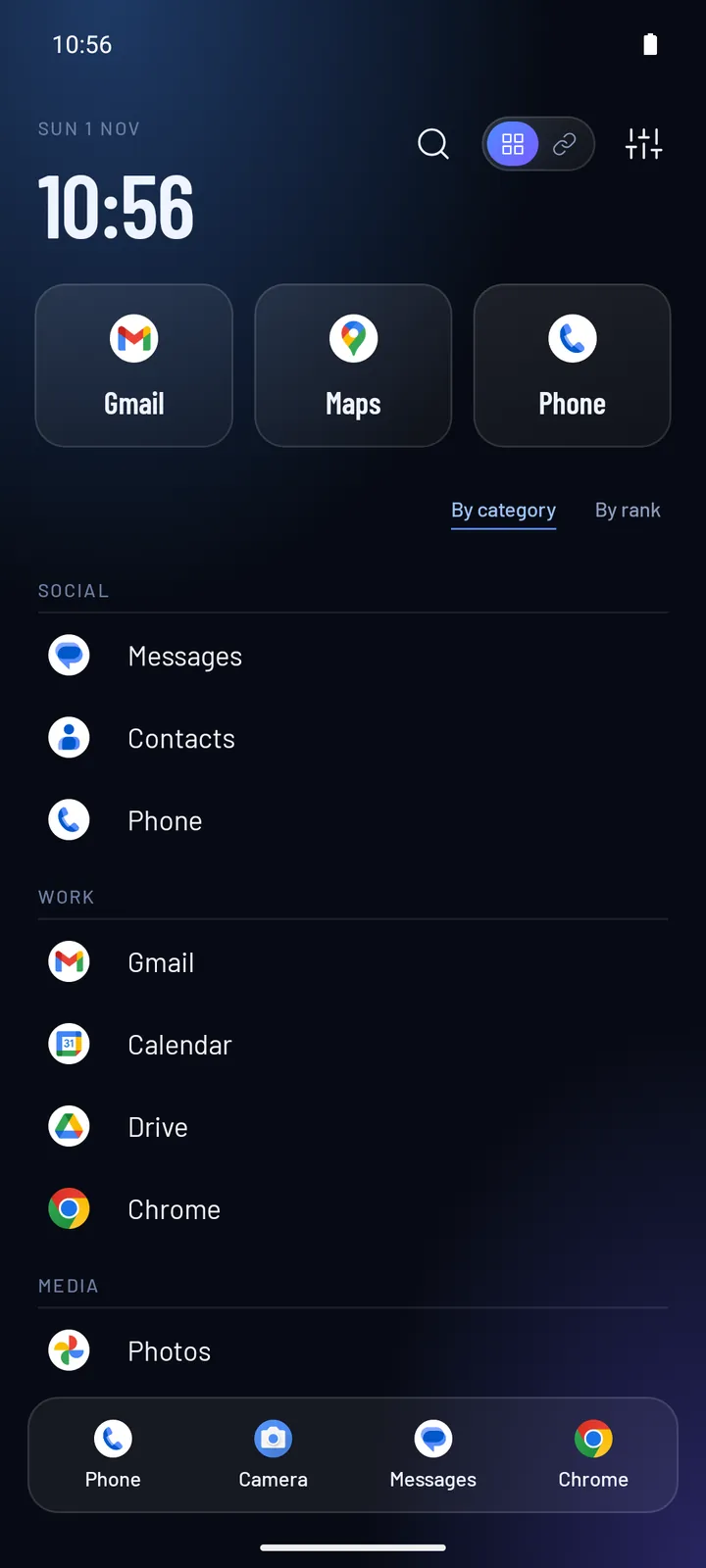
Now Pro
A big clock and the date, three favourites as large cards, then all your apps underneath.
It’s the one to pick if the time is the first thing you look at. You can switch the grouping on the home screen itself.
Good for: a home screen that doubles as a clock, with the apps you use most on top.
Options
- Group by: Category, or Rank to put the apps you open most on top
Folders Pro
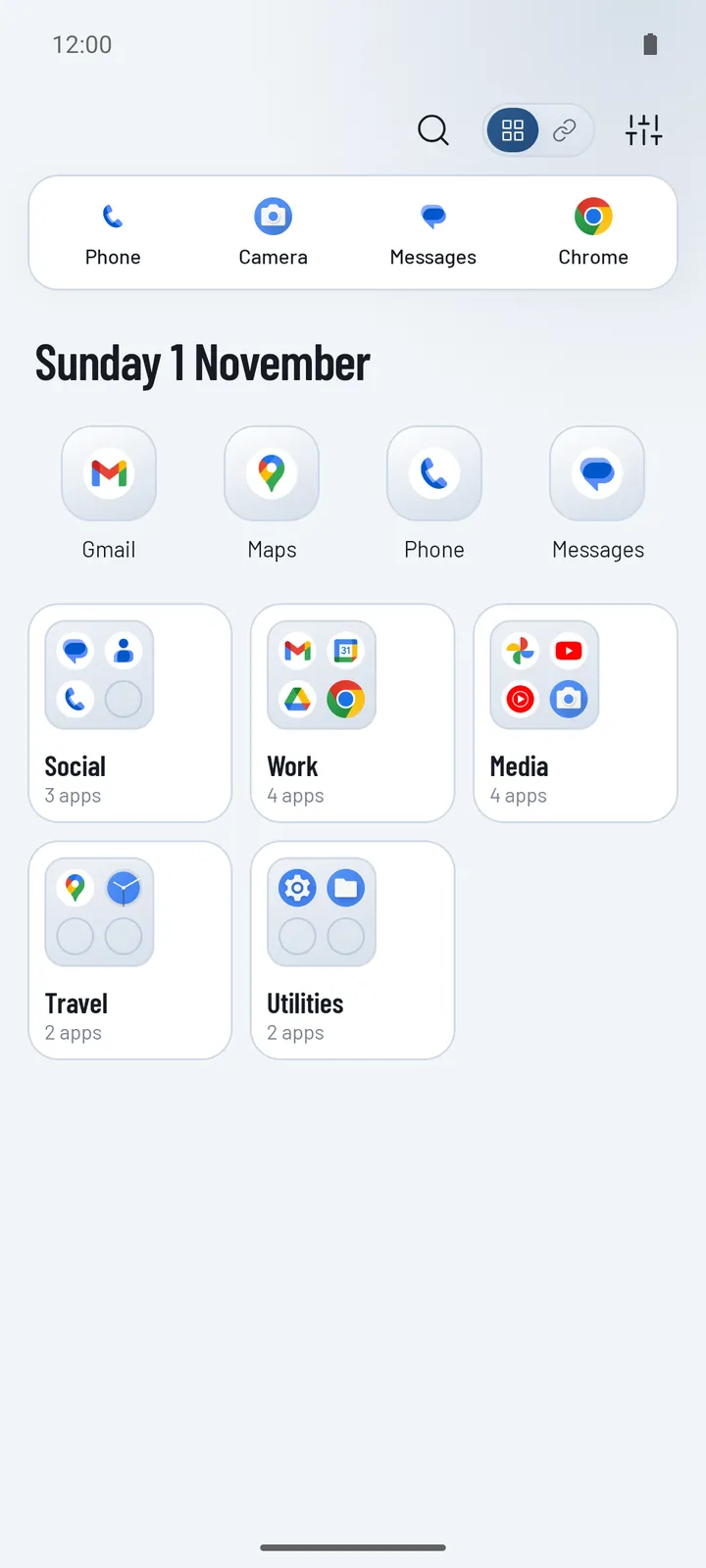
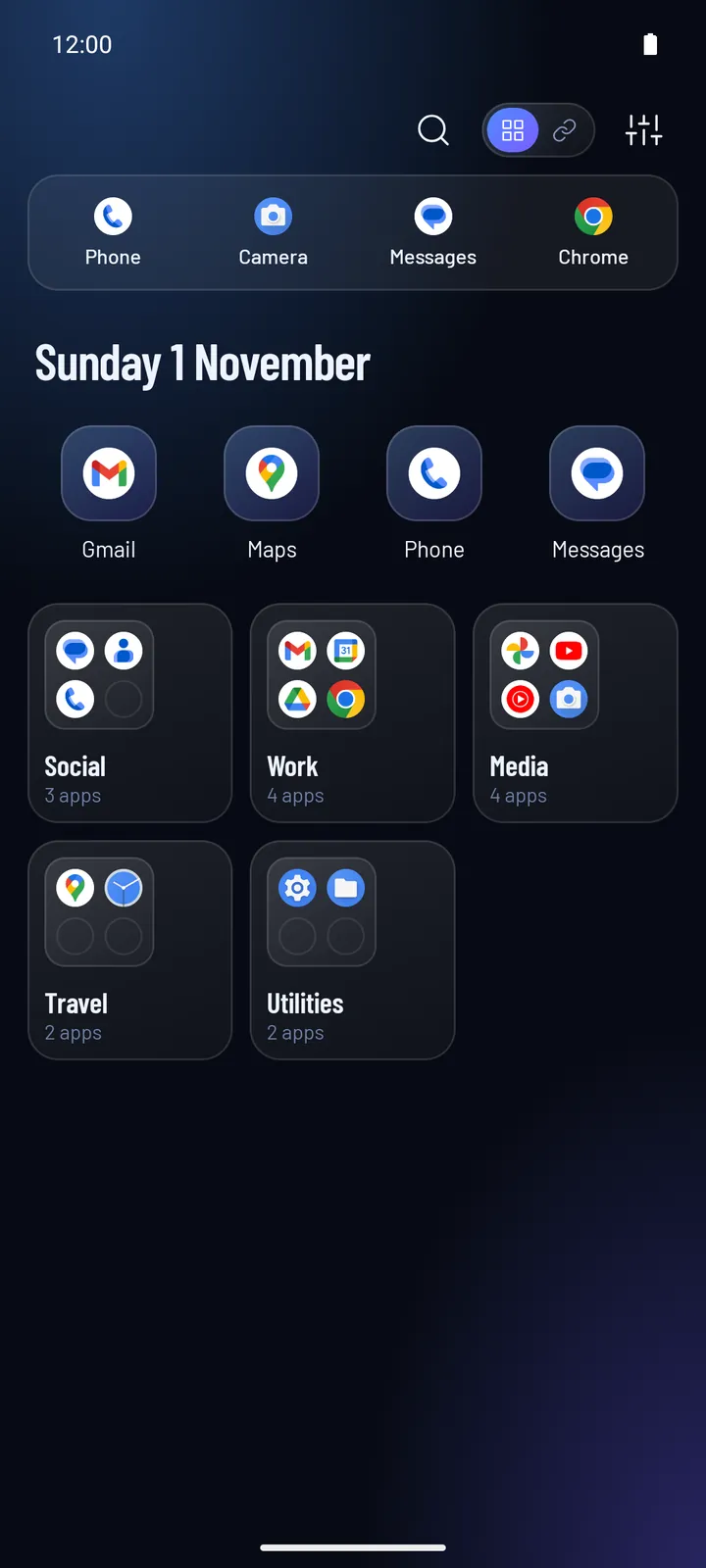
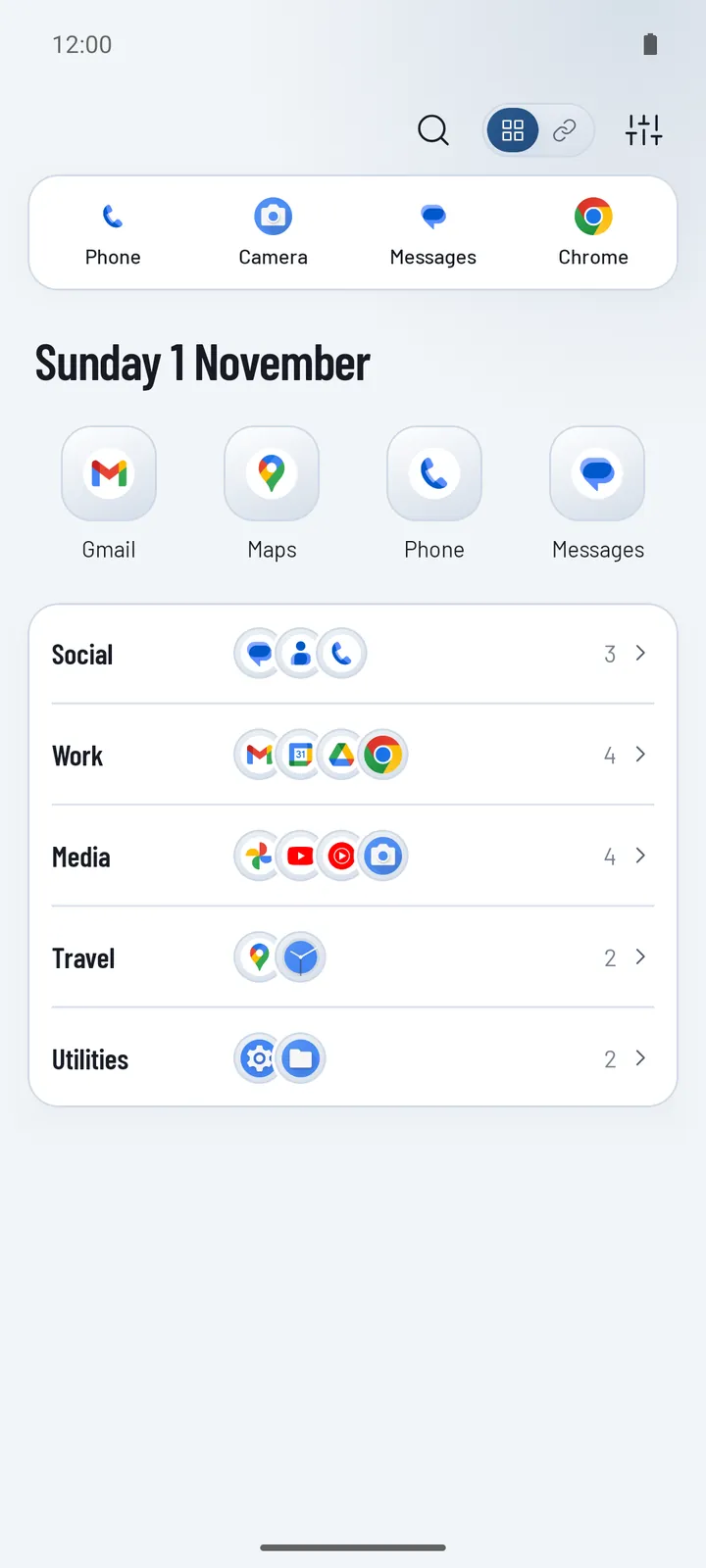
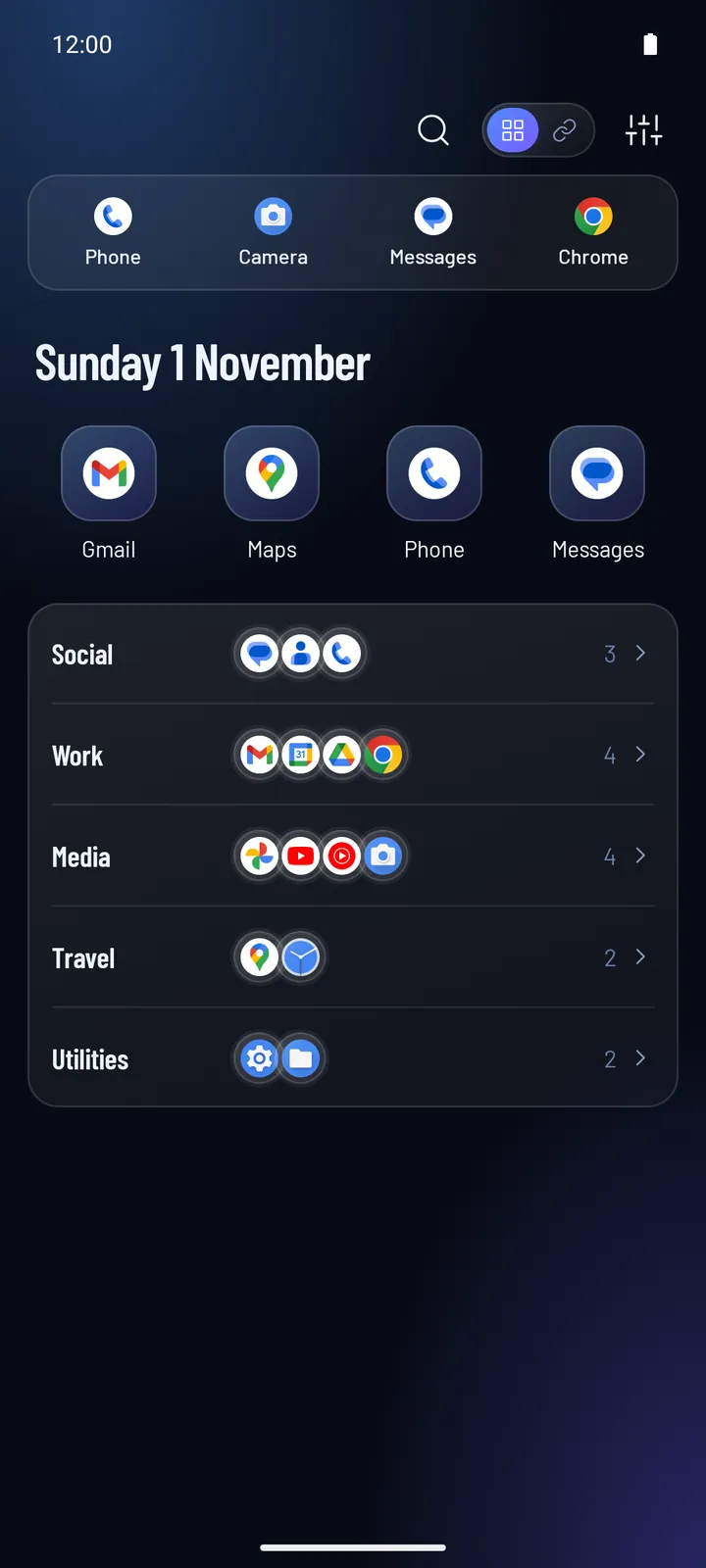
Each category is a folder, so the home screen stays short and tidy however many apps you have.
Tap a folder to slide up its apps, then tap the one you want.
Good for: lots of apps on one short screen, with each category one tap away.
Options
- Folders look: Tiles or Stack
- Hide empty categories
Tiles
2×2 previews, three per row
Stack
One slim row per category
Shelves Pro
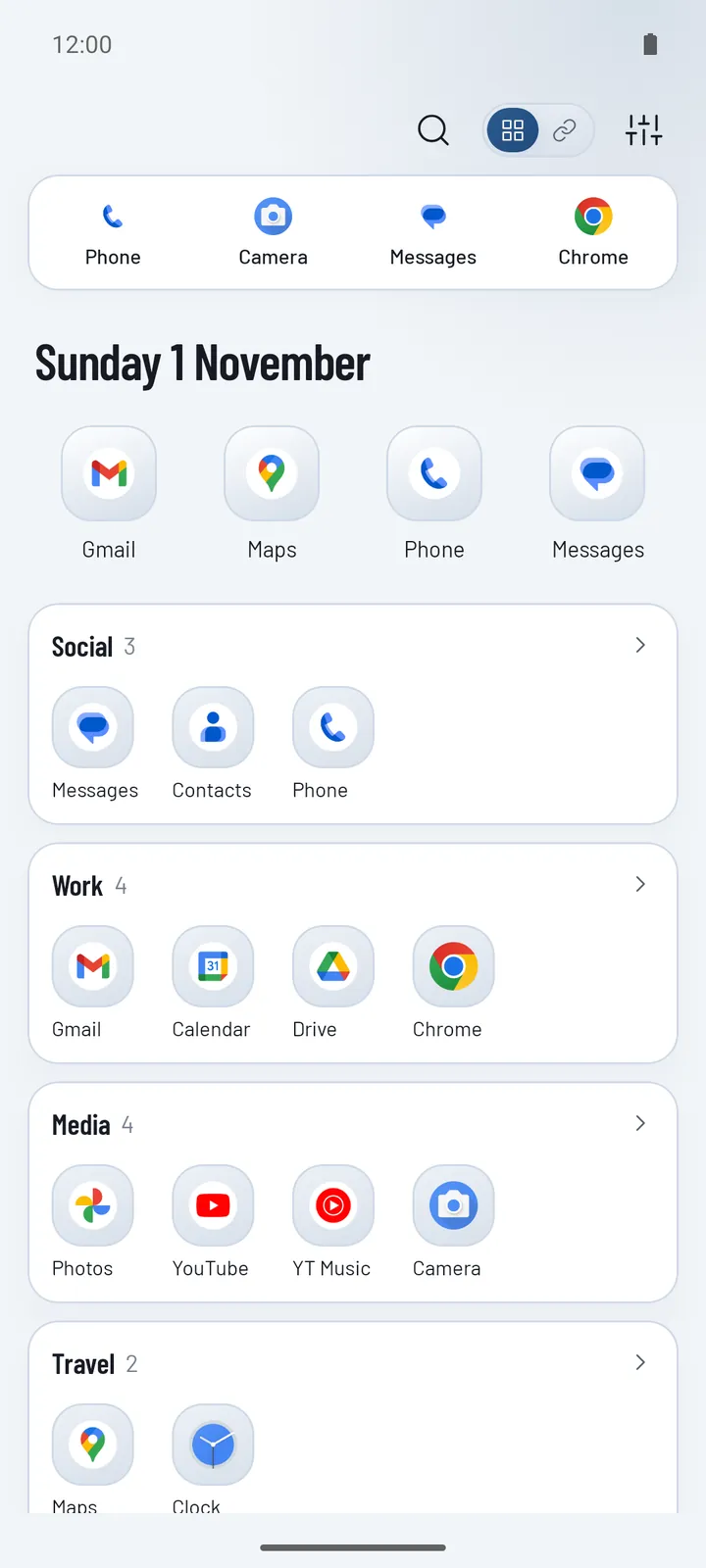
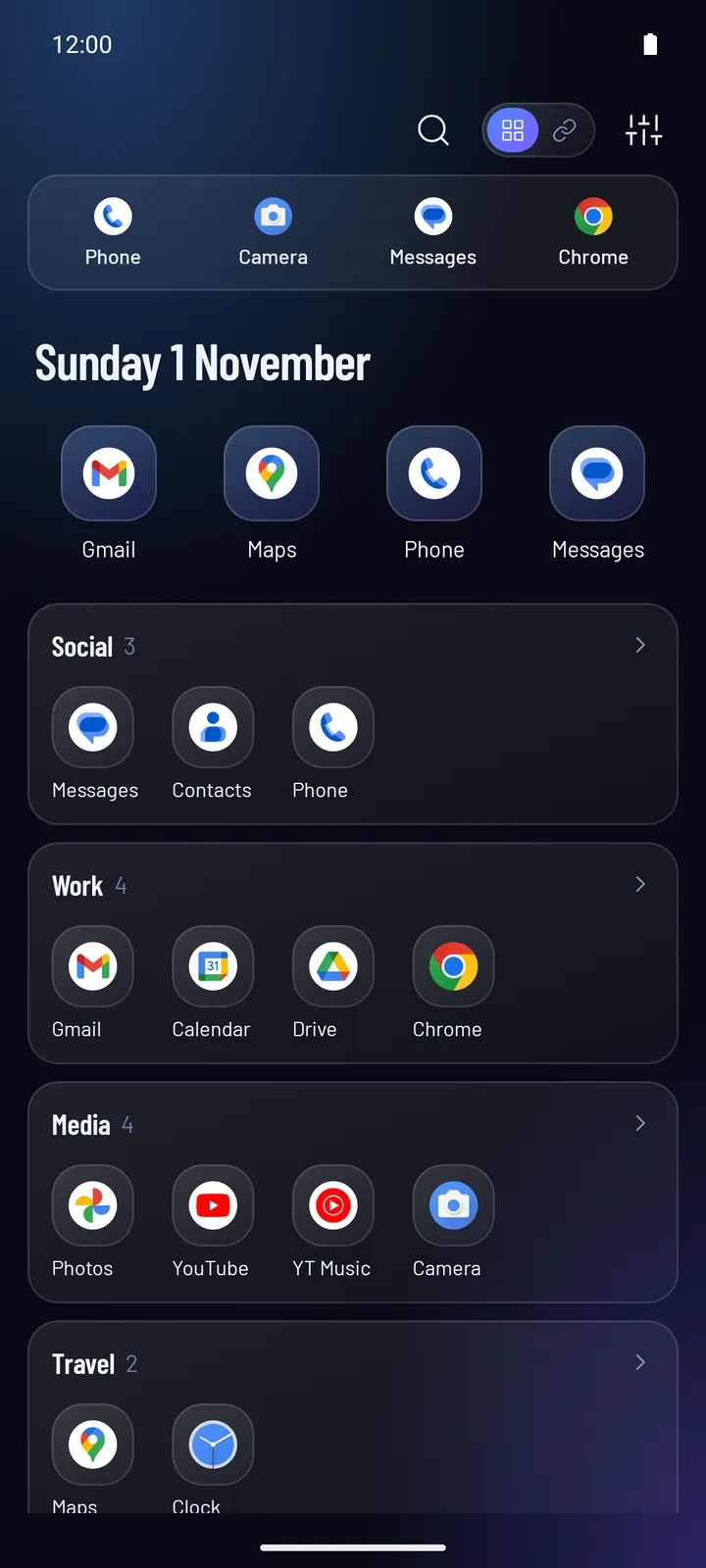
Each category is a shelf, with its name on top and its apps in one row. If a row has more apps than fit, it scrolls sideways.
Apps open straight from the shelf. Tap a shelf’s name to see the whole category.
Good for: browsing by category, with every app visible without opening anything.
Options
- Show app names: under each icon, or icons only for shorter shelves
- Hide empty categories
All five layouts share your categories and favourites, so you can switch any time. New to organising apps? Read how to organise apps on Android or set up a minimalist home screen.